

How customers get there
| Entry point | How it works |
|---|---|
| Link or QR code | The customer opens your enrollment link in their browser — typically from a QR code in store, your website, or a receipt |
| App Clip | On iPhone, tapping an App Clip code or NFC tag opens the same flow instantly as a lightweight native experience — no app install |
| Pre-filled link | Links from your systems can securely pre-fill the customer’s details, skipping typing (and sometimes the whole form) |
| Existing-member link | Customers who already exist in your CRM can get a direct link that just issues their pass |
The customer journey
The walkthrough below follows the Mintleaf Rewards demo program on an iPhone. Your program shows your own branding, form fields, and consents — the steps stay the same.Welcome screen
The customer lands on your program’s welcome screen: your header image and branding at the top, a welcome like “Join [program name]”, and a short invitation text. One tap on Continue starts the enrollment.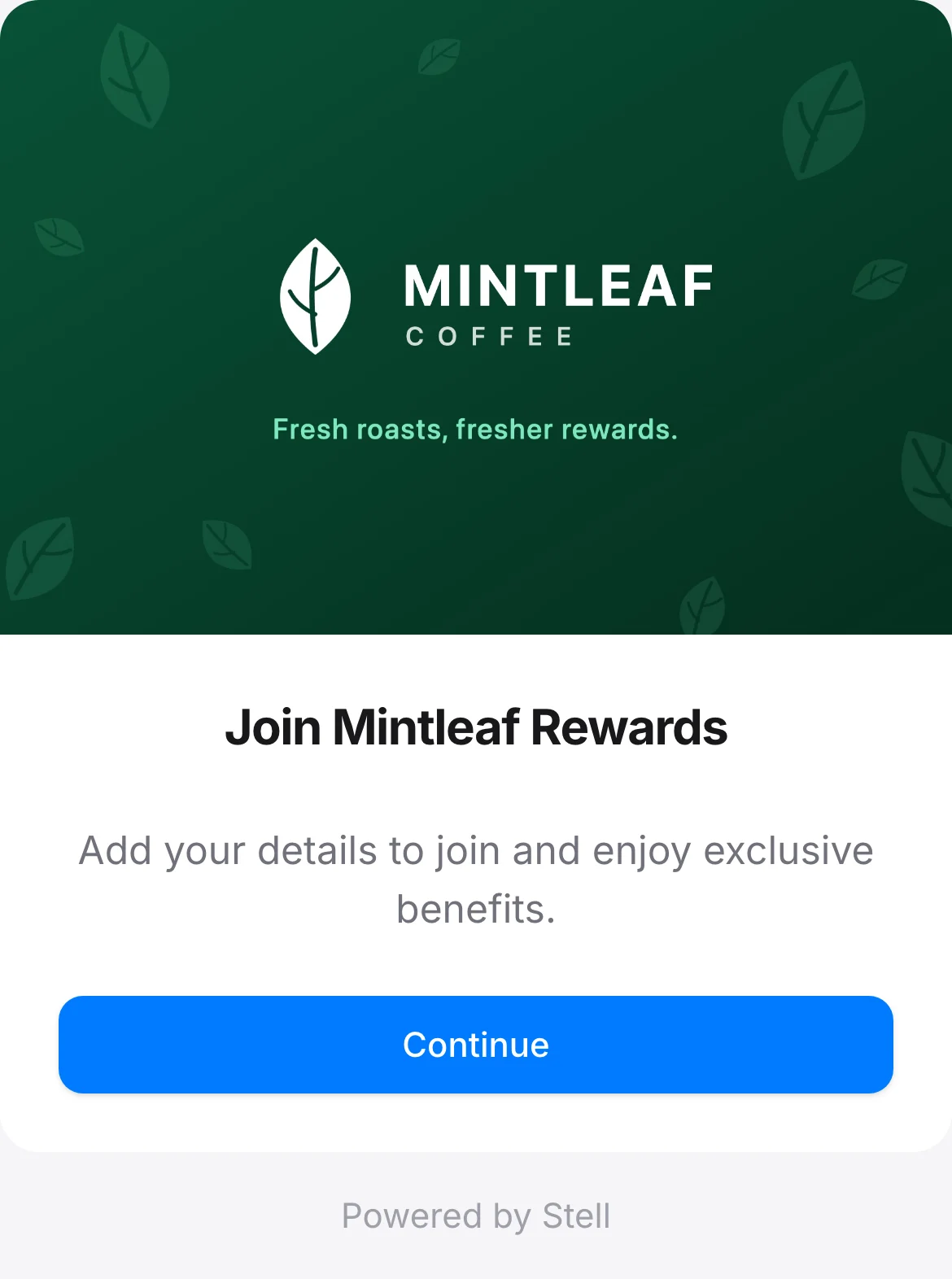
Personal details
A short form collects the customer’s details. Which fields appear — and which are required, marked with an asterisk — depends on your program’s configuration: name, email, phone, birth date, address, and so on. Validation happens as the customer types, and the phone field has a country-code picker. Customers arriving through a pre-filled link find these fields already completed.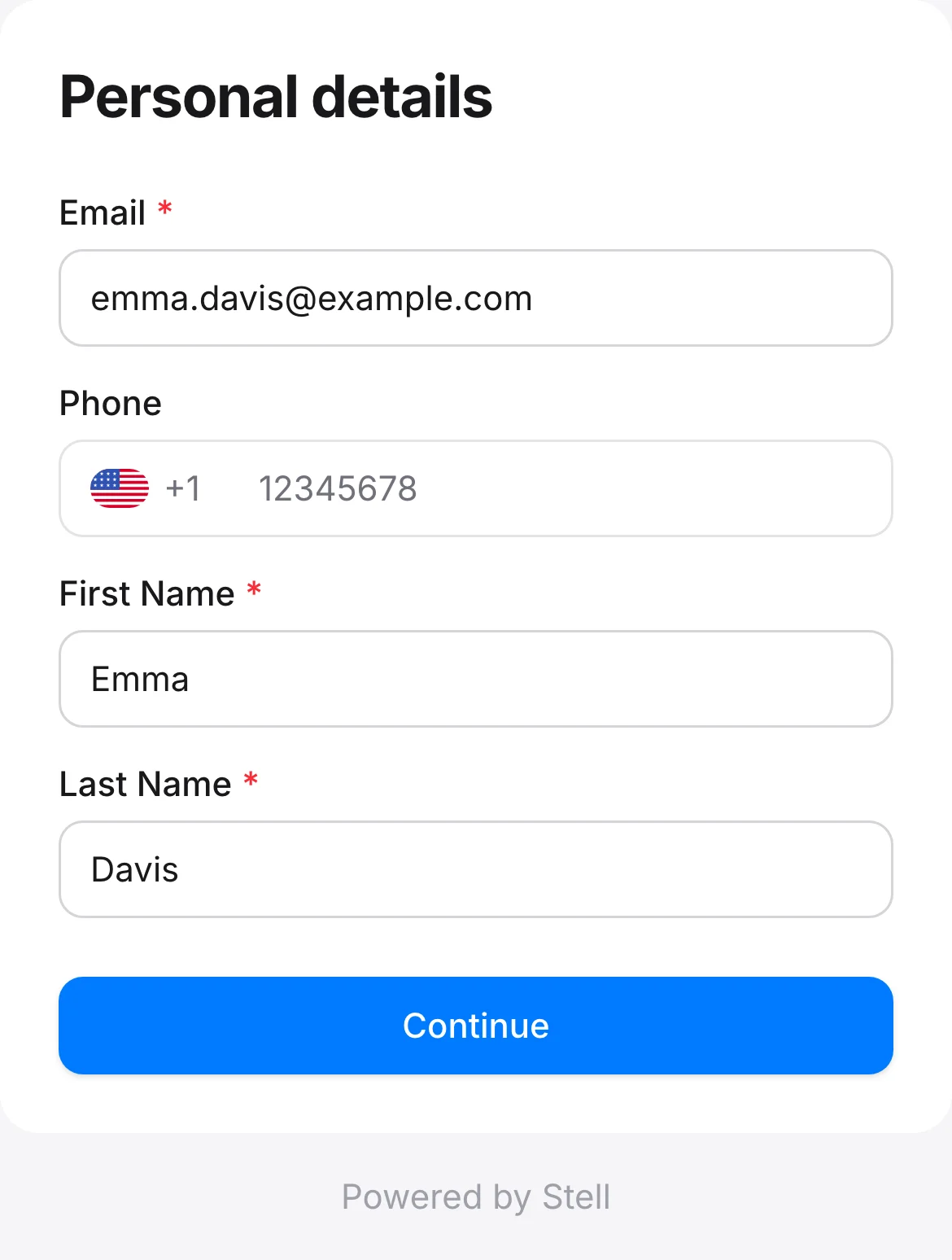
Already a member? Verification
When the form is submitted, Stell checks whether the email or phone number matches an existing member. If it does, the customer verifies their identity with a 6-digit code sent by email or SMS, and then goes straight to adding their pass — the consents step is skipped, since they accepted when they first enrolled. New customers skip this step, and programs using Vipps login skip it too — identity is already verified.
Consents
New members see the consents next. Each consent is a toggle, with required ones labeled — the join button stays inactive until every required consent is given. Below the toggles, a legal note names your company as the consent processor, with links to your terms of use and privacy policy.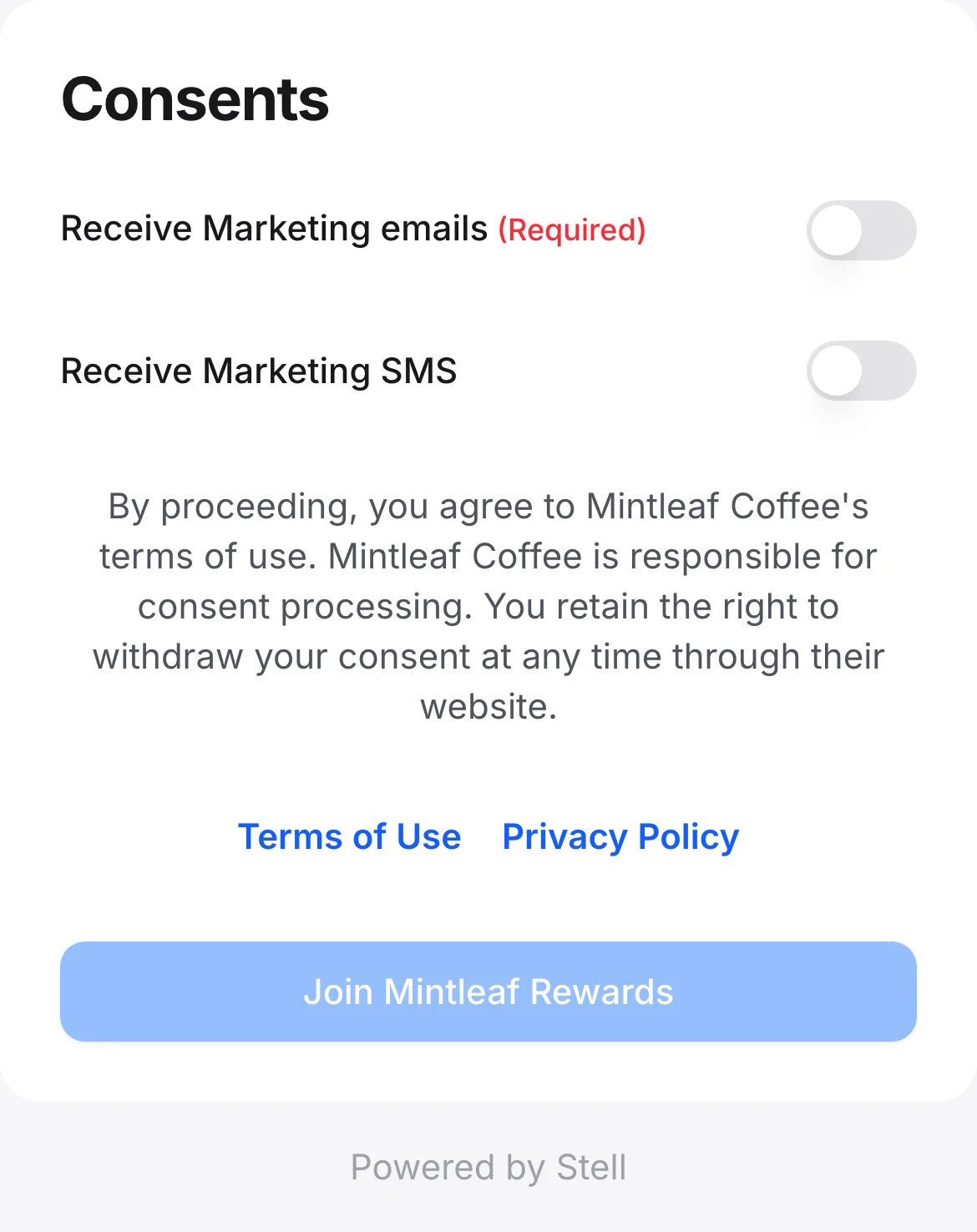
Add the pass to the wallet
The pass is prepared and the customer is asked to add it: Add to Apple Wallet on iPhone, Add to Google Wallet on Android. On desktop, the customer picks their wallet. Tapping the badge opens the wallet’s own add-pass prompt.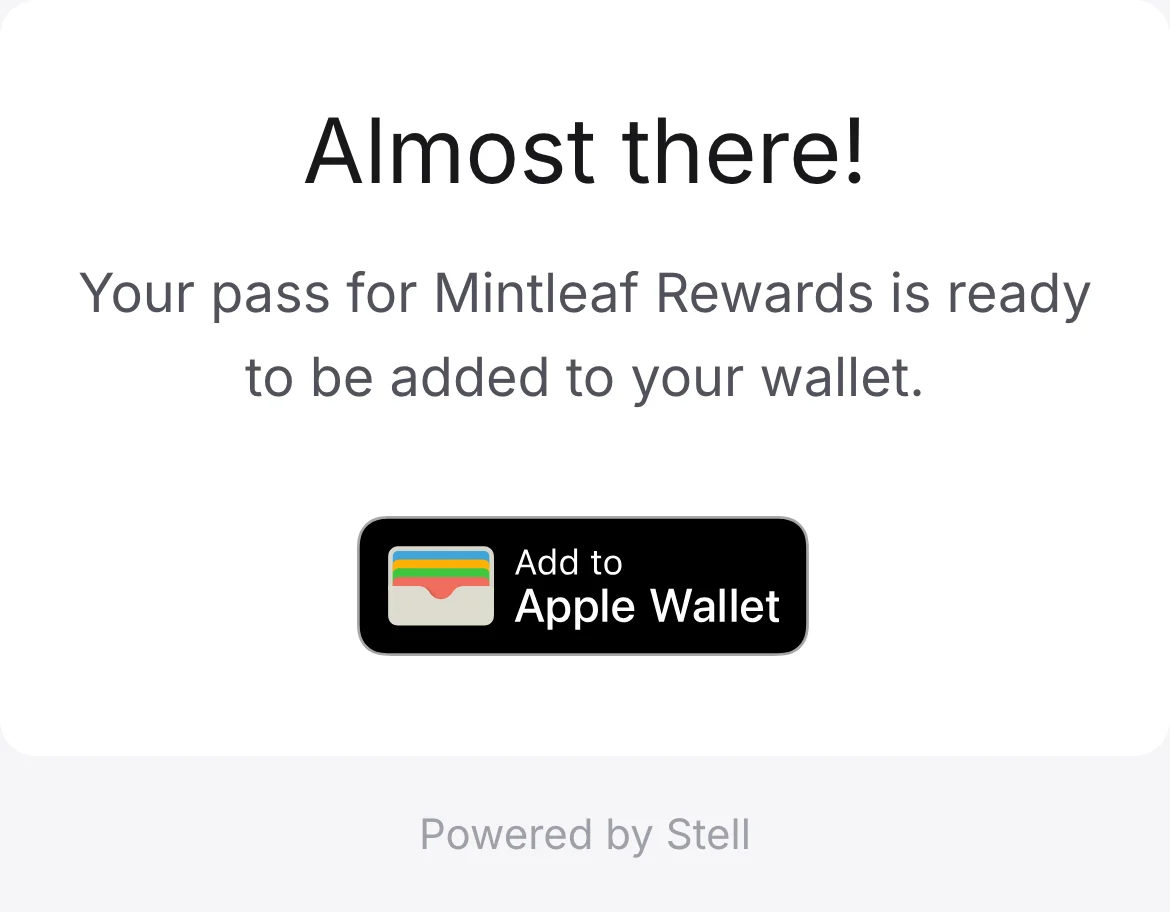
NFC and barcode passes
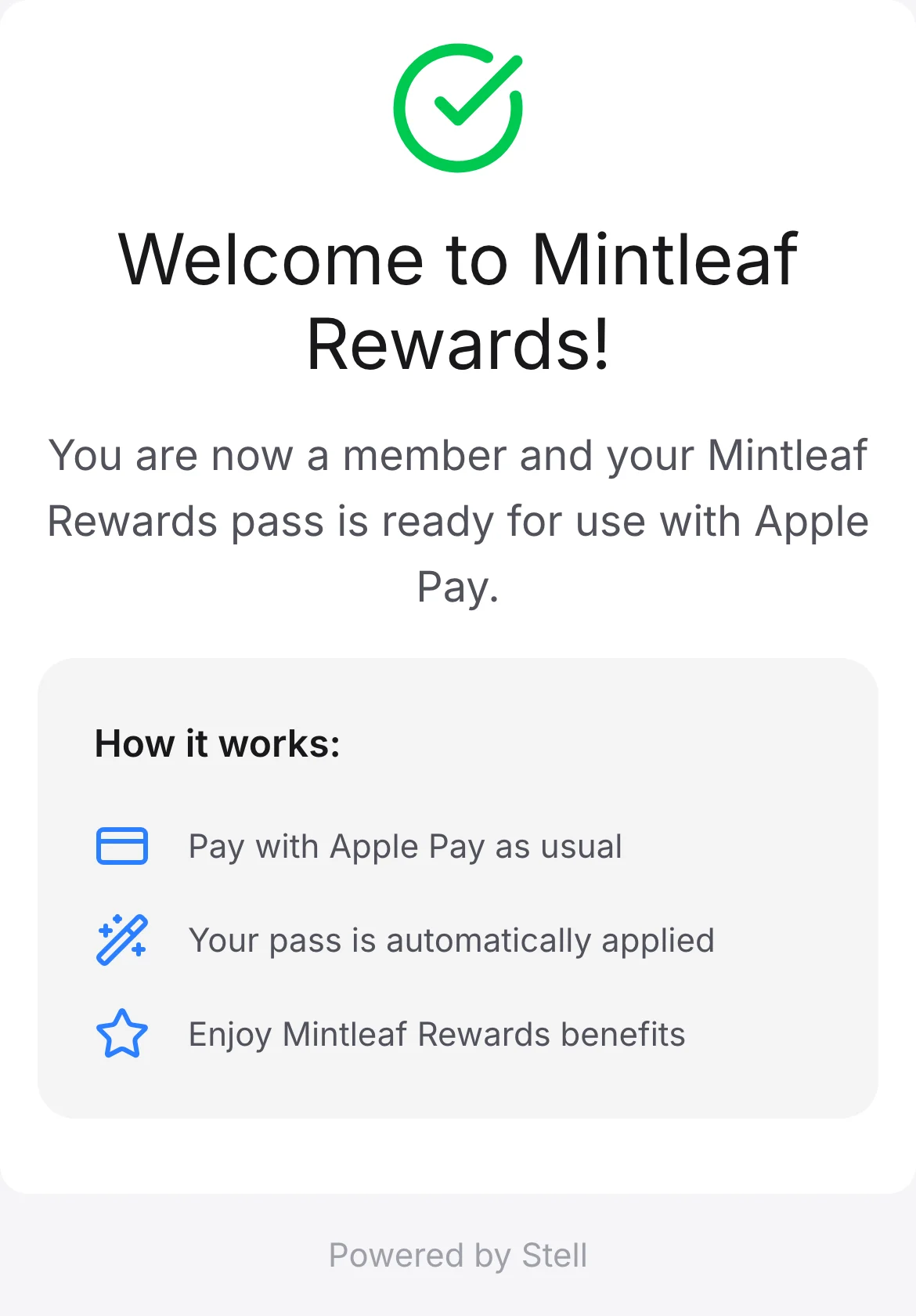
What the customer does at checkout depends on the program’s pass type:- NFC (tap to use) — the pass works through Apple Pay: the customer taps their phone as usual and the pass is applied automatically.
- Barcode/QR — the customer opens their wallet and shows the barcode at checkout.